About the Keyed File Viewer
The Keyed File Viewer lets you open 4690 OS and TCxSky keyed data files (.DAT) and pair them with an INI template file that describes the record layout. Once loaded, every record is parsed field-by-field with decoded values, breakout descriptions, and raw hex views. All processing happens entirely in your browser — no data is uploaded anywhere.
What Are Keyed Files?
Keyed files are a fixed-record binary format used by the IBM 4690 OS and Toshiba TCxSky retail operating systems. Each file contains a Keyed File Control Record (KFCR) in its first sector that describes the file's structure, followed by data sectors containing the actual records.
Common keyed files include:
| File | Description |
|---|---|
EAMTERMS.DAT |
Terminal definitions and configuration |
EAMACCTC.DAT |
Accounting totals and counters |
EAMITEMR.DAT |
Item records (PLU data) |
EAMEMPLY.DAT |
Employee / operator records |
EAMDEPT.DAT |
Department definitions |
Getting Started
Step 1: Open the Keyed File Tab
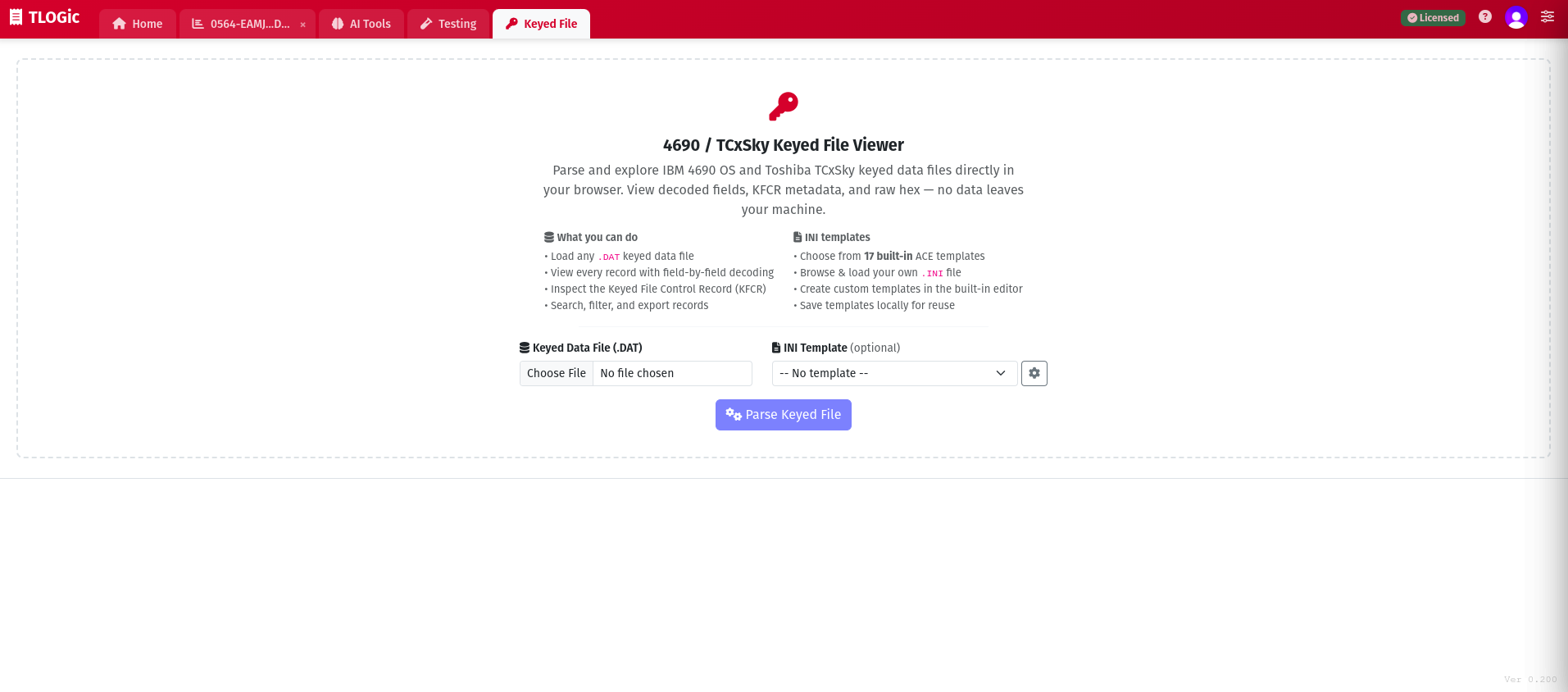
Navigate to the Keyed File tab in the main application navbar. The viewer opens with a dedicated workspace for selecting a keyed data file, choosing an optional template, and opening the template repository.
Step 2: Select an INI Template
The INI Template dropdown lets you choose how records in your keyed file are decoded. You have three options:
- Built-in template — select from 17 pre-loaded ACE keyed file templates (EAMTERMS, EAMACC, EAMITEMR variants, and more)
- Custom template — select a template you previously saved to the repository
- Browse file... — pick a
.inifile from disk (works like previous versions)
You can also leave the template set to “No template” to view raw records without field-level decoding.
Tip
Built-in templates are fetched on demand and cached in your browser. After the first load, they work instantly even offline.
Step 3: Load Your Data File
Click Choose File under Keyed Data File (.DAT) or drag a .DAT file onto the upload area. You can also drag both a .DAT and .INI file at the same time — the viewer detects which file is data and which file is a template by extension.
Step 4: Browse Records
Once both files are loaded, the viewer displays:
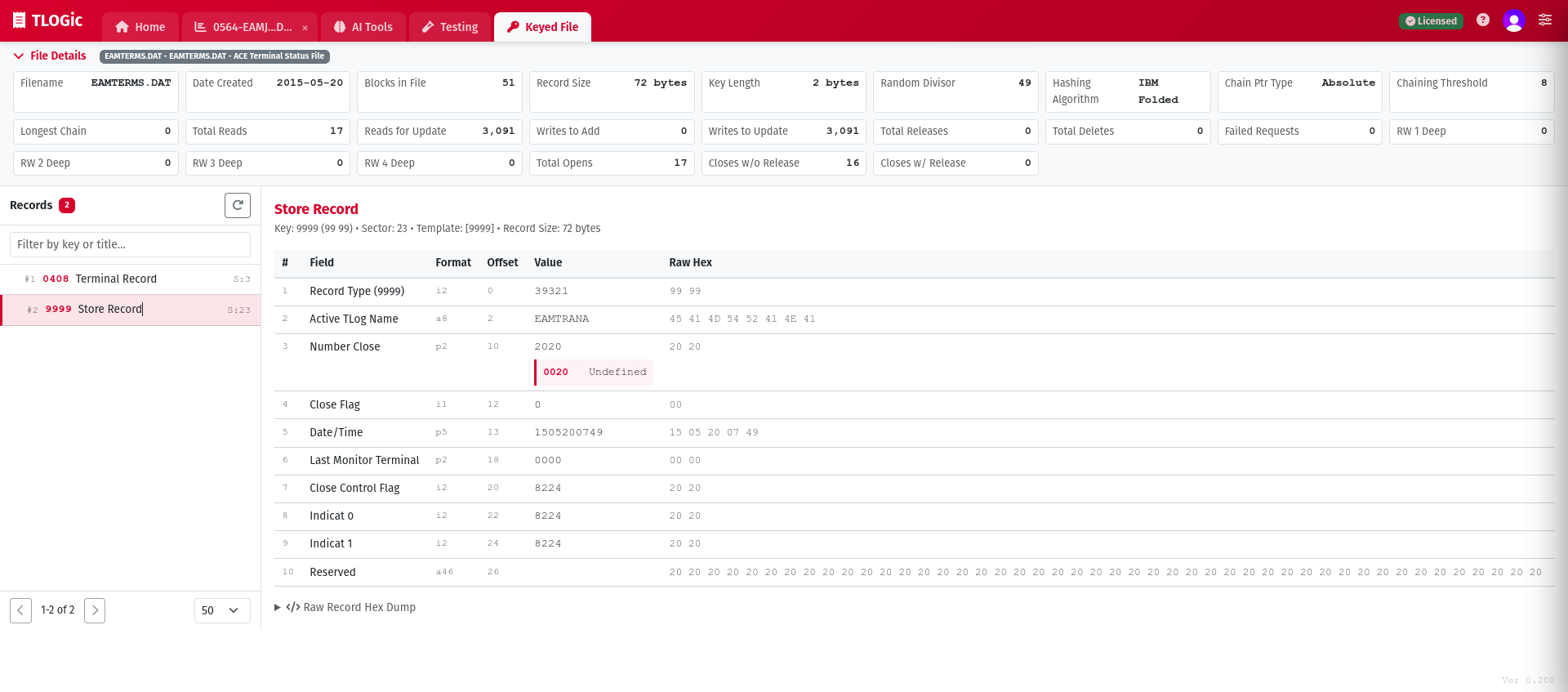
- File Statistics Panel — collapsible panel showing KFCR metadata (block count, record size, key length, hashing algorithm, operation counts)
- Record List (left sidebar) — all records listed by their key value and record title
- Record Detail (main area) — field-by-field breakdown of the selected record, including decoded values, breakouts, and raw hex
- Filter and paging controls — search by key or title, change rows per page, and page through large files
INI Template Format
The INI template tells the viewer how to decode each record. It uses standard Windows INI syntax with three types of sections:
FILE_DETAILS Section
Describes the file itself:
Record Layout Sections
Named by record key (e.g., [9999], [0001]). Each defines the fields in that record type:
A [DEFAULT_LAYOUT] section can be used as a fallback for records whose key doesn't match any specific section.
Field Format Codes
| Code | Type | Example | Description |
|---|---|---|---|
aN |
ASCII | a20 |
N-byte ASCII string, trimmed of trailing spaces/nulls |
iN |
Integer | i2 |
N-byte little-endian unsigned integer |
pN |
Packed BCD | p4 |
N-byte packed decimal (2 digits per byte) |
dN |
Date | d5 |
BCD-encoded date/time (YYMMDDHHmm format) |
Breakout Sections
Breakouts map raw field values to human-readable descriptions. Two types are supported:
Binary Bitmask (b)
Each bit in the field is tested independently. Multiple matches are possible.
Equate (e)
The field value is matched exactly against each defined value.
KFCR Metadata
The Keyed File Control Record (KFCR) occupies the first 512-byte sector of every keyed file. The viewer extracts and displays key metadata:
| Field | Description |
|---|---|
| Total Blocks | Number of 512-byte sectors in the file |
| Record Size | Size of each data record in bytes |
| Key Length | Number of bytes used for the record key |
| Key Offset | Byte offset of the key within each record |
| Hashing Algorithm | Hash method used for key lookups (IBM Folded, XOR Rotation, or Polynomial) |
| Operation Counts | Read, write, delete, and rewrite counters maintained by the OS |
Record Detail View
Click any record in the sidebar to see its full detail. Each field shows:
- Field name from the INI template
- Format code (e.g.,
i2,a20) - Raw hex value of the bytes
- Decoded value (integer, string, date, or BCD)
- Breakout descriptions if a breakout section is referenced
At the bottom of each record, a collapsible Raw Record Hex Dump shows the entire record in hexadecimal for low-level inspection.
Search and Filter
The record list supports real-time filtering. Type in the search box to filter records by:
- Record key value
- Record title (from the INI template)
Use the rows per page selector (25 / 50 / 100 / 200) to control how many records are visible at once, with pagination controls for large files.
Use Cases
Store Configuration Review
- Inspect terminal definitions and settings
- Verify department configurations
- Review employee/operator records
- Check accounting totals
Troubleshooting
- Diagnose keyed file corruption by examining KFCR counters
- Verify record key mappings against expected values
- Compare raw hex with decoded fields to spot parsing issues
- Check operation counts for unusual read/write patterns
INI Template Repository
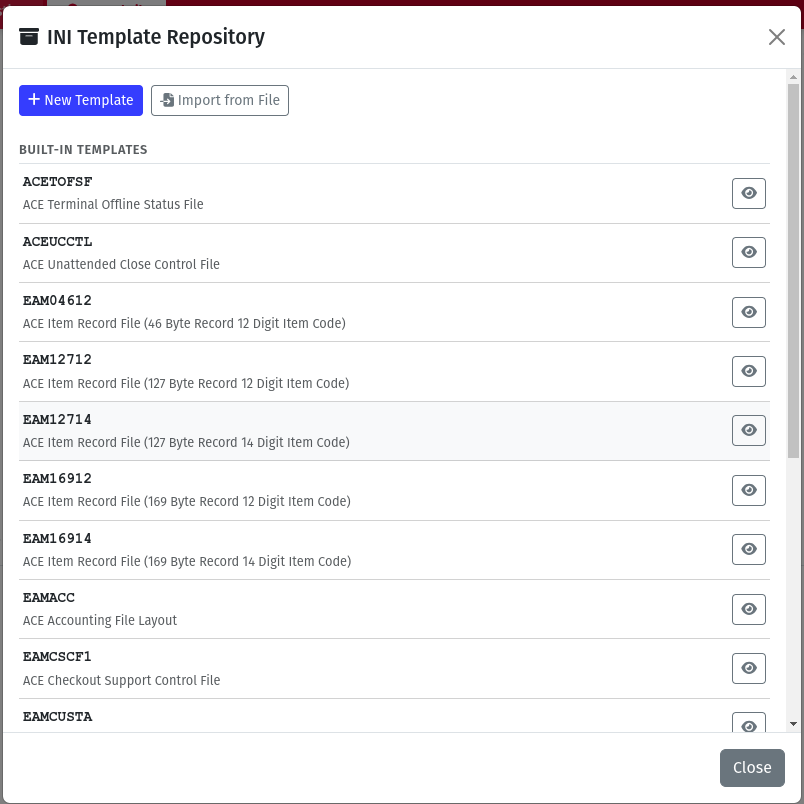
The INI Template Repository stores and manages your templates so you never need to re-browse for the same .ini file. Templates are saved in your browser's local storage and persist across sessions.
Built-in Templates
TLOGic ships with 17 built-in ACE templates covering the most common keyed file types:
| Template | Description |
|---|---|
EAMTERMS | ACE Terminal Status File |
EAMACC | ACE Accounting File Layout |
EAMOPERA | ACE Operator Authorization File |
EAMPER | ACE Operator Performance File |
EAMCUSTA | ACE Customer Account Status File |
EAMTENDV | ACE Tender Verification File |
EAMTRAK | ACE Transaction Tracking File |
EAMTRAN | ACE Transaction Log |
EAMCSCF1 | ACE Checkout Support Control File |
EAMDMCTL | ACE Delayed Data Maintenance Control File |
ACETOFSF | ACE Terminal Offline Status File |
ACEUCCTL | ACE Unattended Close Control File |
EAM04612 | ACE Item Record (46-byte, 12-digit item code) |
EAM12712 | ACE Item Record (127-byte, 12-digit item code) |
EAM12714 | ACE Item Record (127-byte, 14-digit item code) |
EAM16912 | ACE Item Record (169-byte, 12-digit item code) |
EAM16914 | ACE Item Record (169-byte, 14-digit item code) |
Built-in templates appear automatically in the template picker dropdown. They are read-only — you can view their contents but not modify them.
Managing Templates
Click the gear icon next to the template dropdown to open the INI Template Repository modal. From here you can:
View Built-in Templates
Click the eye icon on any built-in template to open it in the editor in read-only mode. This is useful for understanding the record layout or copying sections to a custom template.
Edit Custom Templates
Click the pencil icon on any custom template to open it in the editor. Modify the name, description, or INI content and click Save to update.
Create New Templates
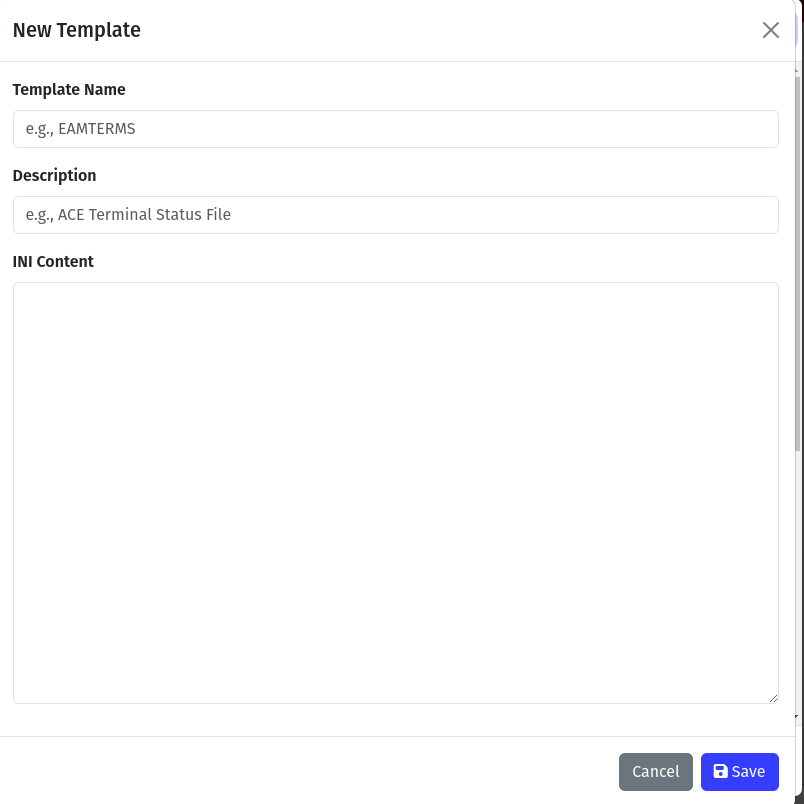
Click New Template to open a blank editor. Give your template a name, optional description, and paste or type the INI content.
Import from File
Click Import from File to load a .ini file from disk into the editor. The template name and description are pre-populated from the file. Review and save to add it to your repository.
Saving a Browsed File as a Template
When you use the “Browse file...” option to load an INI file, a Save as Template button appears. Click it to save the file's contents to your repository for quick access next time.
Tip
Custom templates are stored in your browser's local storage. They persist across browser sessions but are specific to the browser and device you're using. Use Import from File to transfer templates between devices.
INI Template Editor
The built-in editor provides a full-screen monospace text area for working with INI template content. The editor opens when you create, edit, import, or view a template.
Editor Fields
- Template Name — a short identifier (e.g.,
EAMTERMS,My Custom Layout). This is the name shown in the template picker dropdown. - Description — an optional note about the template (e.g.,
ACE Terminal Status File). Shown alongside the name in the dropdown and repository list. - INI Content — the full INI template text in a monospace text area. Follows the standard format described below.
Creating INI Templates
If you don't have an existing INI template for your keyed file, you can create one from scratch using the built-in editor:
- Click the gear icon to open the repository, then click New Template
- Enter a name and optional description
- Start with a
[FILE_DETAILS]section containing the file name and description - Add a
[DEFAULT_LAYOUT]section that covers the common fields across all record types - Add record-specific sections named by key value (e.g.,
[0001],[9999]) for record types with unique field layouts - Add breakout sections as needed for fields with coded values
- Click Save — your template will appear in the dropdown immediately
Tips for Success
- The total byte count of all fields in a layout should match the record size reported in the KFCR
- Key fields must start at the offset specified in the KFCR
- Use
DEFAULT_LAYOUTas a catch-all for record types you haven't fully mapped - Breakout names are case-sensitive and must exactly match the
field_breakoutreferences - INI comments start with
;— use them to document field purposes - Start by viewing a built-in template to understand the expected format before creating your own
Important Notes
- Only 4690 OS / TCxSky keyed file format is supported (512-byte sectors with 4-byte chain pointers)
- The first sector must contain a valid KFCR — non-keyed files will not parse
- Field format sizes in the INI template must be accurate; incorrect sizes will cause fields to misalign
- Very large files (10,000+ records) may take a moment to parse in the browser
- Custom templates are stored in browser local storage — clearing browser data will remove them